Your Voice Memos are not backed up. Getting them safely onto your Mac
Updated · By Charlie Crystle, founder
If years of song ideas live in Voice Memos on your iPhone, check how they're protected today. Many people assume iCloud is backing them up. Usually it's syncing them, which is not the same thing. Here's how to get every memo onto your Mac, confirm it arrived, and keep a real backup.
Recover the songs buried in your Voice Memos.
Download Unstrander free15 recordings titled and transcribed free. No credit card. No subscription.
For Apple silicon Macs with macOS 26 or later.
All the Apple steps below were checked against Apple's support pages in October 2026 (iOS 27 and macOS 27); menu names can shift slightly between versions.
Are my Voice Memos backed up to iCloud?
Probably not in the way you think. If Voice Memos is turned on in iCloud settings, your recordings are synced: the same library appears on every device signed in to your Apple Account. Sync protects you if you lose your phone. It doesn't protect you from deleting a memo, because a deletion syncs too.
It also means your iPhone's iCloud Backup doesn't hold a second copy. Apple says iCloud Backup includes the information on your device "that isn't already synced to iCloud" (What does iCloud back up?). So a synced memo exists in one place in the cloud, plus on each device that has downloaded it.
Two more things can bite:
- A full iCloud plan stops syncing. Apple says that when you run out of iCloud storage, "iCloud Drive and other iCloud apps won't stay up to date across your devices" (Manage iCloud storage). New memos can quietly stay on the phone only.
- Everything hangs on one account. If you're ever locked out of your Apple Account, the synced copies are out of reach with it. A copy on a drive you own isn't.
The fix is simple: get every memo onto your Mac, then back the Mac up.
How do I sync Voice Memos from iPhone to Mac?
Turn on Voice Memos in iCloud on both devices, signed in to the same Apple Account.
On iPhone: go to Settings > [your name] > iCloud, tap See All, scroll down and turn on Voice Memos.
On your Mac: open the Voice Memos app once first; Apple notes it may not appear in the list until you have. Then choose Apple menu > System Settings, click your name at the top of the sidebar, click iCloud, click See All next to Saved to iCloud, and make sure Voice Memos is turned on.
Give it time. A big library can take hours to upload from the phone and download to the Mac. Keep the phone on Wi-Fi and charging, and leave Voice Memos open on the Mac.
A couple of limits from Apple's pages: recordings made on an Apple Watch appear on your other devices (not the other way round), and on macOS 15.1 or earlier, layered recordings made on supported iPhones won't appear on the Mac.
Sources: Keep recordings up to date in Voice Memos on iPhone and See your recordings on all your Apple devices.
How do I check that a memo really synced to my Mac?
Play it on the Mac. A title in the list isn't proof the audio is there; a recording that plays from start to finish is.
A quick check that takes two minutes:
- Compare the newest memo. Record a five-second test on the iPhone. Within a few minutes, with both devices online, it should appear at the top of Voice Memos on the Mac. If it doesn't, sync isn't running; recheck the settings above and your iCloud storage.
- Compare the oldest memo. Scroll to the bottom of the list on both devices. The oldest recording should match. If the Mac's list starts later, the backlog is still downloading or never uploaded.
- Spot-check a few in the middle. Play three or four random older memos on the Mac, especially long ones.
- Check the files themselves (next section). The audio files should be there with sensible sizes, not zero bytes.
If something is stuck on the phone, don't delete anything. Export the missing memos directly (see below) rather than waiting for sync.
Where are Voice Memos stored on a Mac?
In a hidden folder in your user Library:
~/Library/Group Containers/group.com.apple.VoiceMemos.shared/Recordings
To open it, click the Finder, choose Go > Go to Folder, paste that path, and press Return. We checked this location on macOS 26; it's the folder Voice Memos has used on recent macOS versions, but Apple doesn't document it, so it could change.
What you'll see inside:
- One audio file per recording, mostly
.m4a, some.qta(QuickTime audio, used for recordings that were edited or layered). - File names are dates and times, such as
20240312 101500-1A2B3C4D.m4a, not your memo titles. The titles live in a database file in the same folder. - Other files (waveforms, the database, capture folders) that Voice Memos uses itself.
Treat this folder as read-only. Don't rename, move or delete anything in it; Voice Memos manages it, and changes here can sync back to your phone. To keep a copy, select the files and Option-drag them to a folder elsewhere (that copies rather than moves), or use one of the export methods below.
How do I export Voice Memos from my iPhone without iCloud?
Use the share sheet. It works for one recording at a time and doesn't depend on sync at all.
Save to Files (iPhone): open Voice Memos, tap the recording, tap the More button, then the Share button. Scroll down, tap Save to Files, pick a location, and tap Save. You can save to a USB drive plugged into the phone, or to On My iPhone and move it later.
By default the export is an .m4a, which flattens layered recordings and turns Spatial Audio into stereo. To keep layers and effects adjustable, tap Options in the share sheet and choose Editable before saving. Source: Export a Voice Memos recording to Files on iPhone.
AirDrop: from the same Share button, choose AirDrop and pick your Mac. The file lands in Downloads.
From the Mac's Voice Memos app: select a recording and drag it to a Finder window to save a copy wherever you like, or click the Share button and pick an app. Source: Share a recording on Mac.
For a few dozen memos, this is fine. For hundreds, get sync working and copy from the Mac instead.
How do I recover a Voice Memo I deleted?
Look in Recently Deleted in Voice Memos. Deleted recordings stay there for 30 days by default. Tap the folder, tap a recording, and tap Recover; or tap Edit and Recover All.
You can make that window longer: on iPhone, go to Settings > Apps > Voice Memos > Clear Deleted and pick a longer option. If you write songs into Voice Memos, choose the longest one. Source: Edit or delete a recording in Voice Memos on iPhone.
After that window, a memo that was only synced is gone. That's what the next step is for.
How do I back up Voice Memos with Time Machine?
Back up the Mac, and the Voice Memos folder comes with it. Time Machine backs up your files to an external drive automatically, and the recordings folder is part of your user Library.
- Connect an external drive. Apple suggests one with at least twice your Mac's storage.
- Choose Apple menu > System Settings > General > Time Machine.
- Click Add Backup Disk, select the drive, and click Set Up Disk. Turning on Encrypt Backup is a good idea; keep the password somewhere safe.
- Choose Back Up Now from the Time Machine menu in the menu bar, or wait for the next automatic backup.
Time Machine then keeps hourly backups for the past 24 hours, daily backups for the past month, and weekly backups for older months until the drive fills. Source: Back up your Mac with Time Machine.
Check it once. After the first backup, open the Recordings folder from the previous section and choose Browse Time Machine Backups from the Time Machine menu. If you can see your .m4a files in an older backup, you're covered. Also make sure the folder isn't excluded in Time Machine's Options.
If you don't use Time Machine, a plain copy of the Recordings folder to an external drive every month or so is far better than nothing. Keep it somewhere that isn't tied to your Apple Account.
What's the simplest setup that actually protects my song ideas?
Three layers, each covering a different failure:
- Voice Memos in iCloud on the iPhone and Mac, so new ideas leave the phone within minutes. Covers a lost or broken phone.
- Recently Deleted set to the longest option, so a slip of the thumb isn't final. Covers accidental deletes.
- Time Machine (or a regular copy) on a drive you own. Covers sync mistakes, a full iCloud plan, and a locked account.
Do the check in "How do I check that a memo really synced" once now, and again whenever you change phones or iCloud plans.
What next, once they're safe on the Mac?
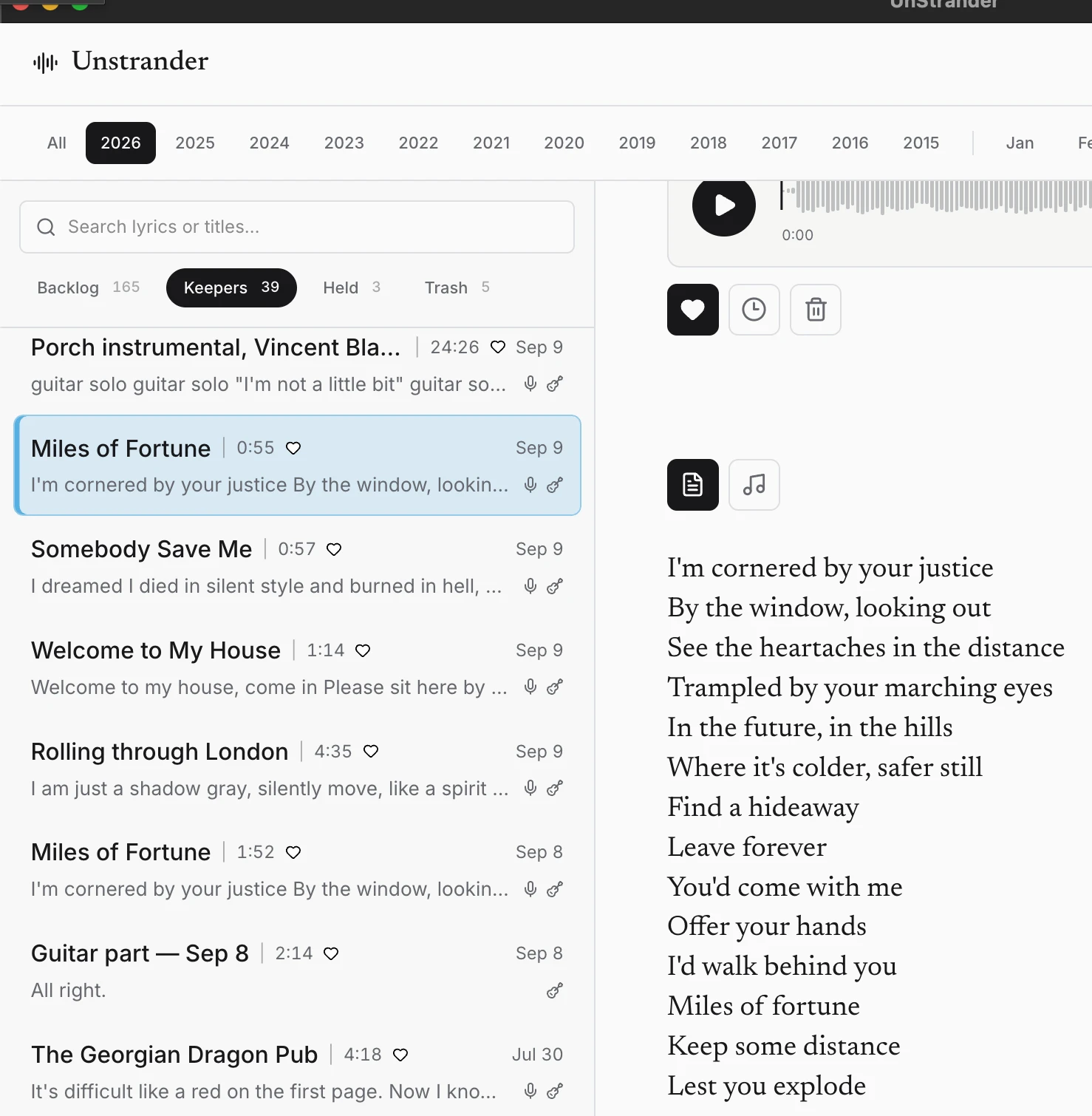
Once your memos are on your Mac, they're also easier to work through. That's what I built Unstrander for: it reads the Voice Memos synced to your Mac, gives each one a descriptive title from what it hears, and transcribes the lyrics, without changing your recordings. If you're curious how well transcription handles singing, see transcribing Voice Memos on a Mac, and why sung lyrics are hard.
Your next great song might already be recorded.
You've captured the ideas. Unstrander helps you find them: years of Voice Memos turned into a searchable library, with descriptive titles, lyric transcripts, and a simple way to decide what to keep.
Download Unstrander free15 recordings titled and transcribed free. No credit card. No subscription. One-time $4.99 launch price ($29.99 regular) for unlimited processing.
For Apple silicon Macs with macOS 26 or later.